

An external hard drive is a vital storage device that expands your device’s capacity, making it easier to back up data and transfer files seamlessly. However, sometimes due to improper ejection, virus attacks, bad sectors, or file system errors, you may encounter hard drive corruption issues on your device. When a hard drive becomes corrupted, it may become inaccessible, display errors, or prompt a format request.
Formatting an external hard drive to repair corruption can result in complete data loss, erasing all files and folders stored on it. Such an undesirable situation can put you in trouble, especially if the hard drive contains something valuable. Fortunately, there are multiple ways to repair a corrupted external hard drive without formatting it.
In this article, we’ll discuss different methods and tools that can help you understand how to repair corrupted external hard drive without formatting. Let’s get started!
Common Reasons for External Hard Drive Corruption
Before exploring various workarounds to repair a corrupted external hard drive, it’s important to understand what causes such corruption. The most common reasons include:
File System Errors: Every storage device uses a file system (e.g., NTFS, FAT32, exFAT) to manage files. These file systems get corrupted if files are not closed properly or due to sudden system shutdowns.
- Bad sectors: Over time, hard drives develop bad sectors – areas where the physical or logical parts fail to store data reliably.
- Virus or Malware Infection: Malicious programs like viruses or malware can corrupt the file structure, hide files, or prevent access to the drive.
- Improper Ejection: Removing an external hard drive without safely ejecting it can cause corruption or deletion of stored data.
- Power Failures or Surges: Sudden power interruptions during data transfer can damage the drive’s file system.
Symptoms That Your Hard Drive is Corrupted
When your hard drive gets corrupted, due to any of the aforementioned reasons, you may encounter the following symptoms:
You may encounter error messages like “The drive is not accessible” or “You need to format the disk before using it.”
- The drive suddenly shows as RAW instead of NTFS/FAT32, making files unreadable.
- Your files and folders suddenly disappear or become hidden.
- Errors like “Cyclic Redundancy Check (CRC) error” or “Data error” may appear while copying or opening files.
How do I Repair Corrupted External Hard Drive Without Formatting?
Now that you are familiar with the reasons and symptoms of your hard drive corruption, it’s time to proceed with adequate fixes to repair your corrupted hard drive. Just go with the following workarounds one by one to repair a corrupted external hard drive without formatting:
Method 01: Try CHKDSK Scan
Windows OS provides a built-in CHKDSK (Check Disk) utility that scans and repairs disk errors without formatting. This feature allows you to fix file system errors and recover readable information from bad sectors. To repair your corrupted external hard drive using this utility, you have to:
Firstly, connect your external hard drive to the computer.
- Search for Command Prompt using the search box located at the bottom-left corner and run it as an Administrator.
- Run this command: chkdsk X: /f (replace X with your external drive’s letter).
- Wait for CHKDSK to complete the scan. The process may take a few minutes to several hours, depending on the drive size and error level.
- Once completed, safely eject the drive and reconnect it to check if it’s accessible.

Method 02: Use Disk Management
Sometimes, Windows recognises the drive but fails to assign it a drive letter. In such a case, assigning or changing the drive letter of that driver can repair the file system errors without formatting. For this:
Press the Windows + X keys and select Disk Management.
- Locate your corrupt external hard drive.
- Right-click on it and select Change Drive Letter and Paths from the context menu that appears.
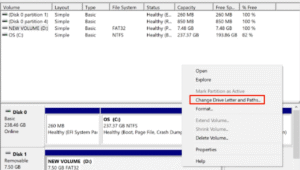
Click on the Add button and from the drop-down next to Assign the following drive letter, select a letter for your external hard disk.
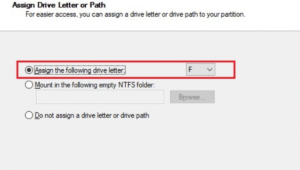
Lastly, click OK and close the Disk Management window.
After assigning a new drive letter, try accessing the drive. Sometimes, this resolves minor corruption issues without formatting.
Method 03: Update or Reinstall Drivers
Having outdated or corrupt drivers on your Windows PC can be a probable reason for external hard drive corruption. You can update or reinstall drivers to restore access to your external hard drive. All you have to do is:
Press the Windows + X keys and select Device Manager.
- Expand Disk drivers and locate your external hard drive.
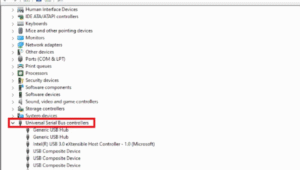
Right-click on that drive and choose Update driver.
- If updating fails to fix the issue, uninstall the device and reconnect it. Windows will automatically reinstall the drivers.
Method 04: Scan External Hard Drive with Antivirus
If your hard drive seems corrupt due to virus or malware, scanning it with a reliable antivirus program can often resolve the issue without the need for formatting. To scan your drive with an Antivirus tool, you have to:
Install a trusted antivirus program (e.g., Windows Defender, Malwarebytes) from its official website.
- Now, connect your external hard drive and perform a full scan.
- Remove detected threats and check if files become accessible.
Additional Tip: How to Recover Files From an External Hard Drive?
In some cases, while repairing your corrupted external hard drive without formatting using the aforementioned methods, your important files and folders may get accidentally deleted. If you encounter data loss issues, try free data recovery software tools such as Stellar Data Recovery Free to get your files back. It is a free tool which allows you to recover up to 1 GB of files for free. The software performs through scanning of your external hard drive to recover deleted, lost, or inaccessible files without formatting.
Key Features of Stellar Data Recovery Free Software
It supports recovery of data deleted from corrupted, formatted, or inaccessible external drives.
- The software is compatible with both Windows and macOS devices.
- It supports a wide range of file types, including photos, videos, documents, and audio files.
- The free version supports recovery of up to 1 GB of files for free. To restore files of a larger size, check and use the premium versions.
- It offers a user-friendly interface with a file preview option before recovery.
Steps to recover deleted files from an external hard drive without formatting using this amazing tool:
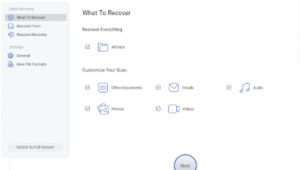
Step 1: Download and install the Stellar Data Recovery Free software from its official website on your computer. Launch the software and from the software, select the type of data you need to recover and click Next.
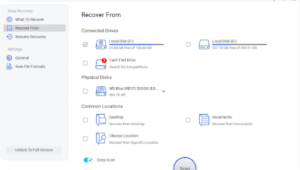
Step 2: Choose the folder location or storage drive where the deleted file was earlier stored and click Scan to initiate the scanning process.
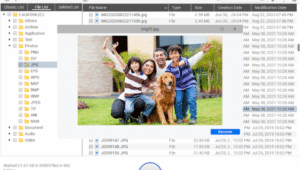
 Step 3: Once the scan is complete, preview the recoverable files to check the quality of the files before recovery. Click Recover and choose a safe location on a different drive (not the corrupted one) to save the restored files.
How to Prevent External Hard Drive Corruption?
Taking preventive measures is always wiser than seeking a cure, since it minimises the chances of corruption. Here are some additional tips that you can consider to prevent such corruption from your end:
Safely Eject Drives: Always use the “Safely Remove Hardware” option before removing an external hard drive from your PC.
- Avoid Sudden Shutdowns: Unexpected or sudden shutdown of your system during transfers can cause data loss. Keep your device connected to a stable power source during file transfer or downloads.
- Check Drive Health Regularly: Use tools like CrystalDiskInfo to monitor hard drive health and bad sectors.
- Keep Backup: Maintain a backup on another storage device or cloud service at regular intervals.
Wrapping Up
Having a corrupted hard drive does not always require formatting. There are several built-in utilities like CHKDSK, Disk Management, and First Aid etc. that you can try to repair your corrupted external hard drive without formatting. Additionally, try fixes like updating drivers or scanning for malware to resolve various corruption issues. Moreover, if you encounter data loss on your external hard drive, you can try free data recovery software tools like Stellar Data Recovery Free to restore your lost files without any cost.
With patience and careful handling, it’s possible to repair most corrupted external drives without losing your valuable data.
